
Automatic SSL: issuing, renewing, and the TLS errors that still scare users away
For users who have seen "Your connection is not private" too many times, the padlock next to your address is the difference between buying and closing the tab.
Co-founder, Parslinks · Team, marketing & infrastructure
7am on a Friday, the owner of an online language school posts in a Telegram group: "Has our site been hacked?" Everyone who opens it sees the red "Your connection is not private" page. It hasn't been hacked; the SSL certificate expired last night. Automatic renewal stopped running when the server was moved, and the warning emails went to the previous developer's address.
For users who have run into certificate errors, VPN quirks and fake payment pages many times over, that message means "this place isn't safe". Most won't come back to ask what happened.
How do automatic certificates work?
Let's Encrypt issues free certificates valid for 90 days. To issue one, you must prove you control the domain, usually in one of two ways:
- HTTP-01: the certificate authority requests a specific file at
http://your-domain/.well-known/acme-challenge/.... If your server returns it, ownership is proven. - DNS-01: you create a specific TXT record in the domain's DNS. This is required for wildcard certificates (like
*.example.com).
Tools like certbot do this automatically and start renewing about 30 days before expiry. On a platform, this whole part is out of your hands: you add the domain, create the DNS record, and issuing and renewal belong to the platform.
Why does automatic renewal fail?
Automatic renewal is automatic until its conditions change. The most common reasons it fails:
- The server changed and the certbot timer wasn't installed on the new one.
- DNS changed and the domain no longer points at the server where certbot runs.
- A proxy or CDN in front doesn't pass the HTTP-01 request through to the origin.
- A CAA record was added that doesn't allow Let's Encrypt.
- The firewall closed port 80 because "we only use https".
We see the last one a lot. Port 80 must stay open, both for ownership checks and so users who type http:// get redirected to https://.
Common errors and what they really mean
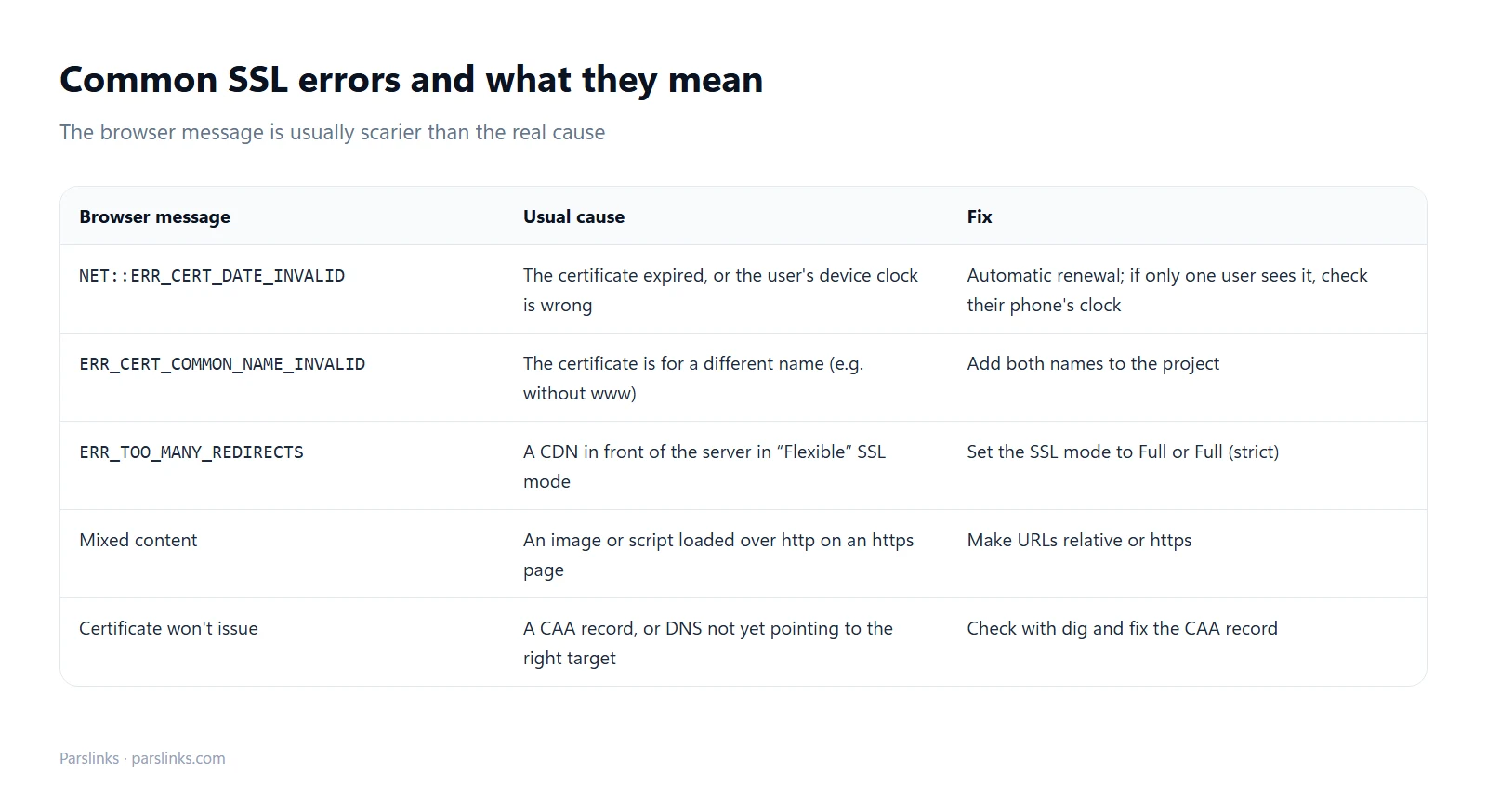
The browser's message is usually scarier than the real cause. This table pairs the errors we see most with their cause and fix:
When only one user sees an error
If everyone else sees the site fine and one person gets a date error, it's almost always that user's device clock, for example a phone whose battery died completely and reset its clock years back. Ask them to turn on automatic time.
Redirect loops with a CDN
If the domain sits behind a CDN or proxy (ArvanCloud or Cloudflare, for example) set to "Flexible" SSL, the CDN talks to your server over http. Your server, which redirects all http to https, sends the CDN back to https, forever. Set the mode to Full, or better, Full (strict).
Mixed content
The page loads over https, but an image or script is still requested over http://. The browser blocks it or shows a grey padlock. It usually comes from URLs stored in the database (product images in WordPress, for example) or an old ad snippet. Make URLs relative, or update them to https with a database query.
On Parslinks
You add the domain in the project settings and create the record the dashboard shows. Once the record resolves correctly, the certificate is issued, and renewal is handled by the platform. If issuing gets stuck, it's usually one of three things: the record hasn't propagated yet, a CAA record is blocking it, or a CDN proxy is intercepting validation. The full record guide is in connecting a domain.
Frequently asked questions
Join the discussion
No comments yet. Be the first to share your thoughts.
Related posts
- Guides
Connecting a domain to your app: A, CNAME, the apex, and why DNS changes seem slow
You've connected the domain, but half the team still sees the old site. This post explains which record goes on the apex and which on www, how TTL slows a switch down, and how to use dig to see what the rest of the world actually sees.
- Guides
Moving from cPanel to Git-based deploys: a step-by-step guide for small teams
FTP uploads and editing files in cPanel's File Manager work for a small site, until two people change the same file at once. This guide walks through moving a PHP or Node.js site from cPanel to Git-based deploys, including the database, uploads, email and DNS.
- Platform
PaaS or a VPS? The real DevOps hours behind a small team's server
The VPS price is on the invoice. The hours spent on patches, SSL renewals, deploy scripts and midnight restarts are not. This post counts those hours, compares them with a platform, and is honest about when a VPS is still the better call.